
Applying signatures to users and groups
After you create your signature templates, create a rule to apply them to users, groups, domains, or attribute-based selections. If you have not created templates yet, start with Getting started with the template editor. Rules are applied in priority order, starting at 1.
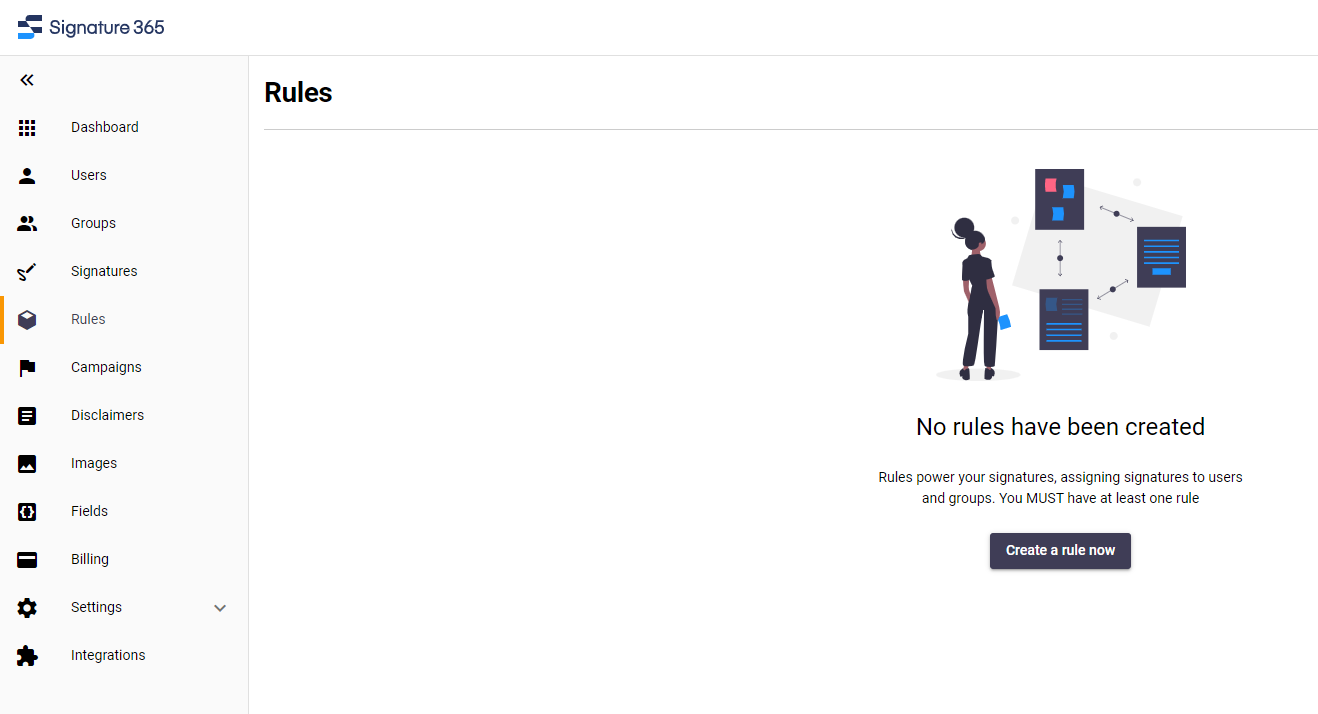
If you do not have any existing rules, click Create a rule now. Otherwise, click + Add to create a new rule.
This opens the new rule screen where you can set a name and description.
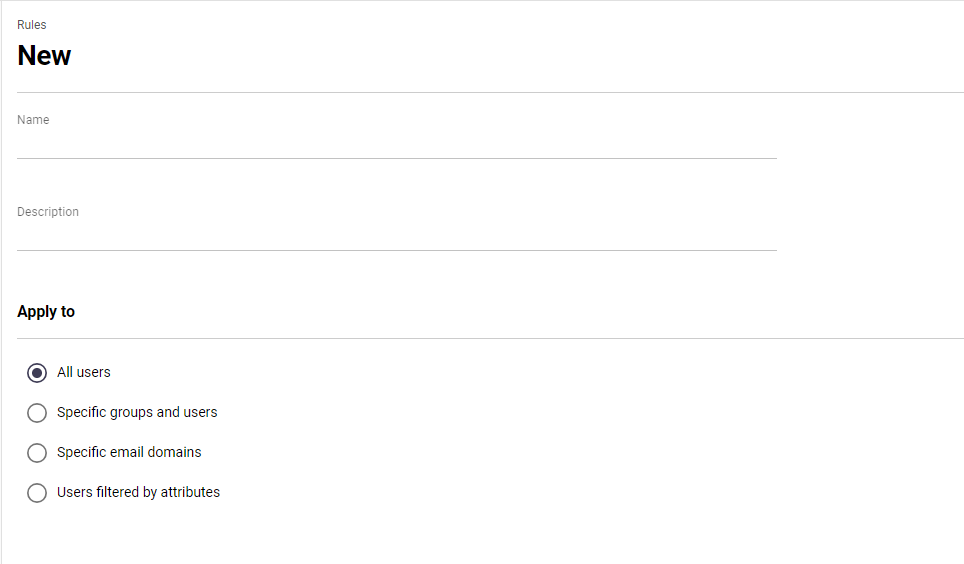
Choose who the rule applies to
The Apply to option lets you decide which users the rule targets. You must already have integrated Signature 365 with your Microsoft 365 tenant and imported the relevant users or groups.
- All users applies the rule to every user in the tenant.
- Specific groups and users applies the rule only to the selected groups or users.
- Specific email domains applies the rule to users whose email addresses match the selected domains.
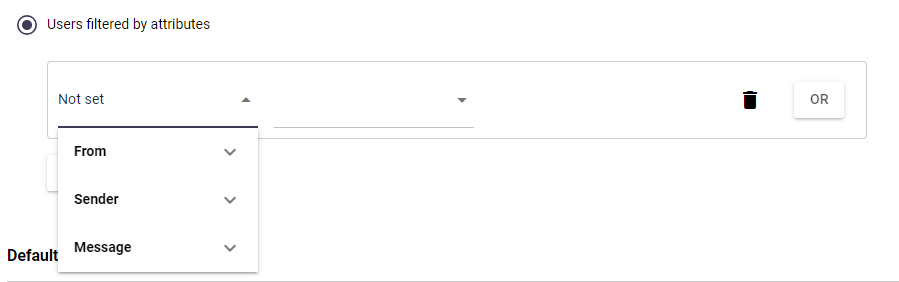
The Users filtered by attributes option supports advanced rule checks based on From, Sender, and Message values.
The From and Sender filters can be applied against any field that exists within Signature 365. For example, you can use From > Email > Contains to test for an email alias. For a dedicated alias example, see Assigning a signature to an email alias.
The Message option allows a rule to evaluate specific message properties:
- Sent on behalf of is a yes or no field based on whether the email is sent on behalf of another mailbox.
- From email address and Sender email address allow specific checking of the address the email is sent from.
- Source system allows checking of the source email client, such as a mobile device or Outlook on the web (OWA). ::: ::
Match on sender or from address
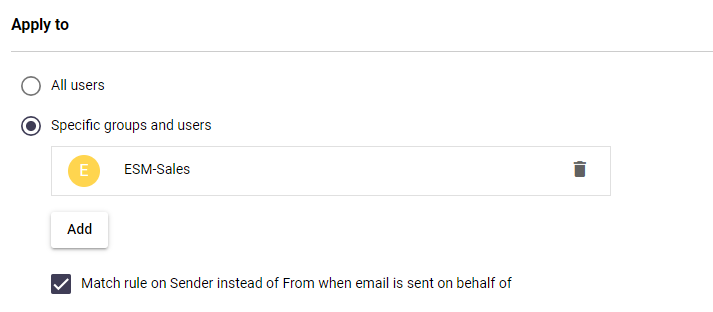
The Match rule on Sender instead of From... checkbox is available for the groups and users and email domains options. It is enabled by default and is useful when sending emails from shared mailboxes. This option matches the rule based on the sender of an email rather than the mailbox the email is being sent from.
Configure default and additional signatures
The Default signatures section lets you choose how the rule should be applied: New emails and replies/forwards or Internal/External.
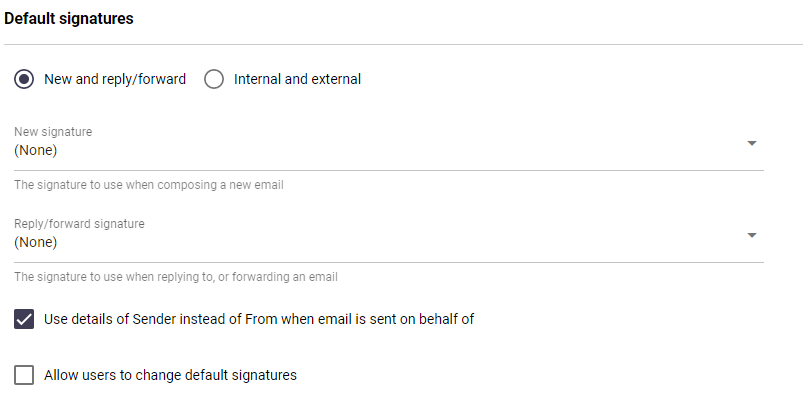
Depending on the selection, the available options apply signatures to new or reply email, or to internal or external email. The default signature for each selection can be chosen from the dropdown list.
An internal or external email is determined by the recipient addresses. Signature 365 always applies the external signature if any recipient is not a member of your Exchange email domains.
The Use details of sender instead of from..... checkbox is enabled by default. It uses the details of the mailbox that is sending the email when the message is sent from a shared mailbox, rather than using the details of the additional mailbox.
The Allow users to change default signatures option is disabled by default. Enable it if you want users assigned to this rule to choose their own default signature when additional signatures are available.
Use Additional signatures to make more than one signature available for this rule.
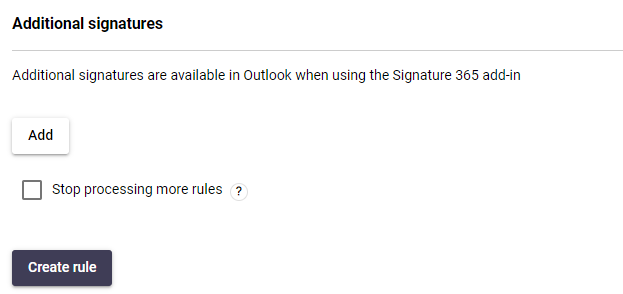
The Stop processing more rules option prevents lower-priority rules from being applied to a user, group, or domain once this rule has been triggered.
Click Create rule to save the rule.